AxoEditor is the rich-text editor used across Axogram fields. Different fields show different versions — with more or fewer tools available. This guide explains each editor type, every toolbar button, common workflows, and editorial best practices.
The Golden Rule: use the simplest formatting that does the job. Good editorial use of AxoEditor means clean text, consistent punctuation, deliberate links, limited formatting, and no pasted clutter from Word or websites.
Part 1 — Editor Types
The editor type is determined by the field, not by you. Different fields in DAM and CMS use different editors depending on what kind of content they are meant to hold. You cannot switch between editor types.
1. Short Inline Editor
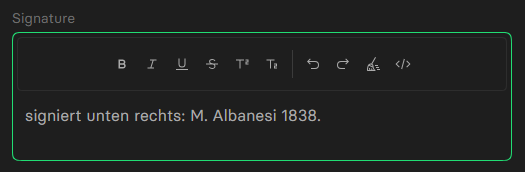
Used for short but slightly formatted content.
Typical fields: signature, inscription, short provenance statements.
Available tools: bold, italic, underline, strikethrough, superscript, subscript, undo, redo, clear formatting, HTML view.
2. Paragraph Editor
Marked with a ¶ symbol next to the field label.
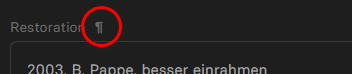
Used for longer, structured writing.
Typical fields in DAM: exhibition text, footnotes, restoration notes, editorial notes, internal remarks.
Typical fields in CMS: teaser.
Available tools: everything in Short Inline, plus bullet lists, numbered lists, special characters.
3. Full Rich Editor
Also marked with a ¶ symbol. Adds media and layout tools.
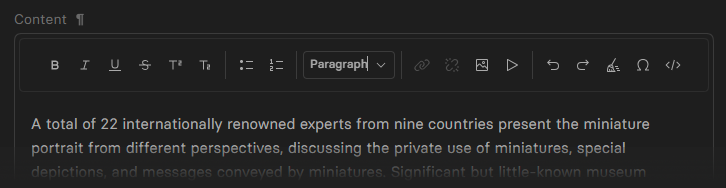
Currently used in: the CMS “content” field.
Available tools: everything in the Paragraph Editor, plus headings, alignment, indentation, image insertion, video insertion, link insertion.
At a Glance
| Feature | Short Inline | Paragraph | Full Rich |
|---|---|---|---|
| Bold / italic / underline | ✓ | ✓ | ✓ |
| Strikethrough / super / subscript | ✓ | ✓ | ✓ |
| Bullet and numbered lists | — | ✓ | ✓ |
| Special characters | — | ✓ | ✓ |
| Headings | — | — | ✓ |
| Alignment / indentation | — | — | ✓ |
| Image / video insertion | — | — | ✓ |
| Links | — | — | ✓ |
| Undo / redo / clear / HTML | ✓ | ✓ | ✓ |
Part 2 — Icon & Toolbar Reference
Depending on the field, you may see some or all of these tools.

Text Formatting
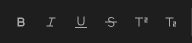
| Icon | Name | When to use |
|---|---|---|
| Bold | Strong emphasis only. Do not use for decoration. | |
| Italic | Titles of works, foreign phrases, editorial emphasis. | |
| Underline | Use sparingly — readers often mistake underlined text for links. | |
| Strikethrough | Rarely needed in polished editorial text. | |
| Superscript | Note markers, ordinal numbers, special notation. | |
| Subscript | Technical or scientific notation where required. |
Lists

| Icon | Name | When to use |
|---|---|---|
| Bullet List | Unordered points with no inherent sequence. | |
| Numbered List | Ordered steps or sequences where order matters. |
Use lists only when the content is genuinely list-shaped. Do not break flowing prose into bullets.
Block Types and Structure
Available in richer editors only. Use the block-type selector to choose:
| Block type | When to use |
|---|---|
| Paragraph | Default for all normal editorial text. |
| Heading 1 | Top-level section heading only. Do not use just to make text larger. |
| Heading 2 | Sub-section heading. |
| Heading 3 | Third-level heading. |
| Blockquote | Extended quotations that need visual separation. |
| Code Block | Technical content only. Never use for normal prose. |
Stay with Paragraph unless there is a clear structural reason to change.
Utility Actions
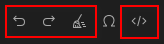
| Icon | Name | What it does |
|---|---|---|
| Undo | Reverses your last action. | |
| Redo | Restores the action you just undid. | |
| Clear Formatting | Removes visible formatting from selected text. Useful after pasting. | |
| HTML | Opens the source view. Use only for fixing broken markup. |
Part 3 — How-To Workflows
Special Characters
Some editors include a Special Characters tool. Use it for clean editorial writing instead of rough keyboard substitutes.
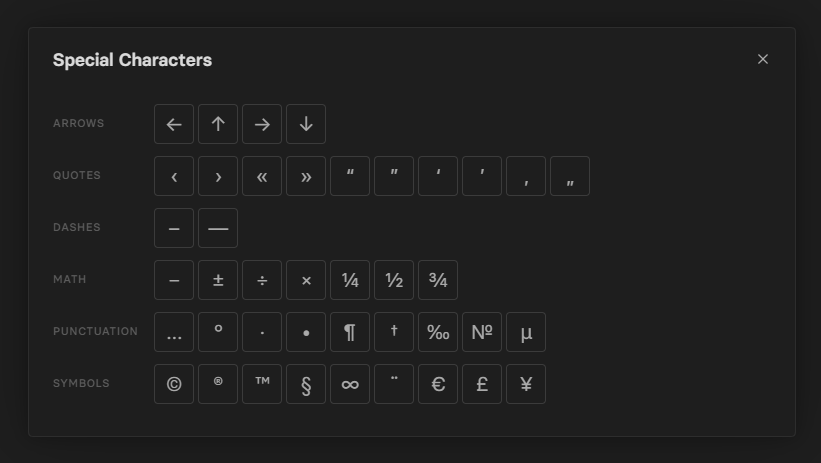
Quotation marks — house rule: never use straight quotes (" or '). Always use typographic (curly) quotation marks:
| Language | Primary quotes | Quotes within quotes |
|---|---|---|
| English | “ … ” | ‘ … ’ |
| German | „ … “ | ‚ … ‘ |
The exception is code blocks, where straight quotes are correct and intentional.
Other useful characters:
| Character | Use for |
|---|---|
| – | En dash — ranges and connections (1995–1996, London–Paris) |
| — | Em dash — parenthetical remarks, with spaces ( — ) |
| × | Multiplication sign (not the letter x) |
| … | Ellipsis |
| † | Dagger for footnote-style marking |
| € £ ¥ | Currency symbols |
Copy and Paste: The Safe Way
When you paste text from Word, Google Docs, email, or a website, AxoEditor cleans the text automatically. That usually means:
- bold and italic may stay
- messy inline styling is removed
- unsupported or unsafe markup is removed
- unwanted IDs, scripts, and similar technical clutter do not stay
Important — Short Inline Editor: this editor strips paragraph tags (<p>) on paste. If you paste text with multiple paragraphs, the paragraph breaks will be lost. Always check spacing carefully after pasting into a short inline field.
After pasting, always check: paragraph breaks, spacing, quotation marks (typographic only), list structure, links, unexpected formatting.
Best practice for pasting:
- Paste the text.
- Read it immediately in the editor.
- Clean spacing and line breaks.
- Reapply only the formatting you actually need.
- If the result still looks strange, use Clear Formatting and rebuild manually.
How To Add A Link
Use links sparingly and deliberately.
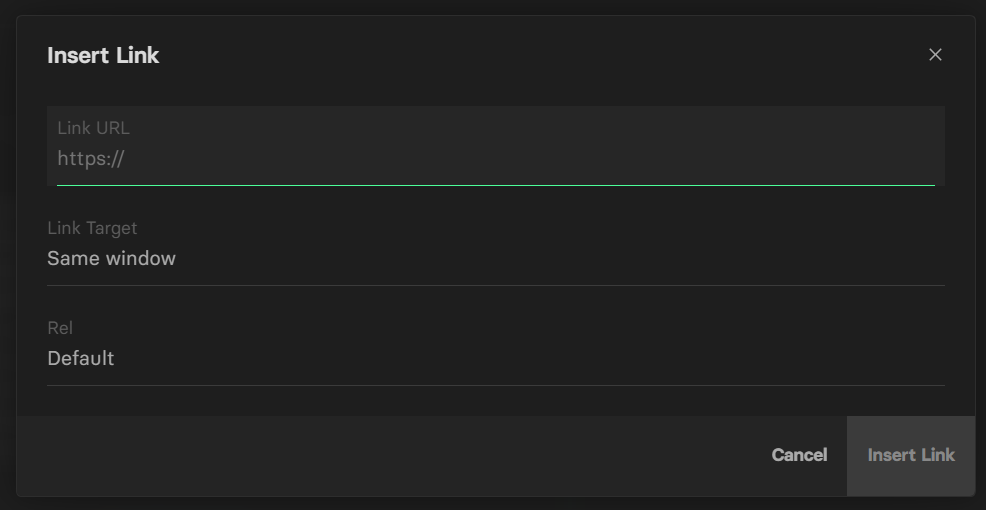
Insert a new link:
- Select the text that should become the link.
- Click Insert Link.
- Add the URL.
- Insert the link.
Links open in the same tab by default. Only change this to a new tab if there is a specific editorial reason to do so.
Edit an existing link: place the cursor inside the linked text, open the link tool again, update the URL or target.
Remove a link: select the linked text or place the cursor inside it, then use Unlink.
How To Add an Image
Image insertion is available in the Full Rich Editor only — wherever the image icon appears in the toolbar. Currently this is the CMS “content” field only.
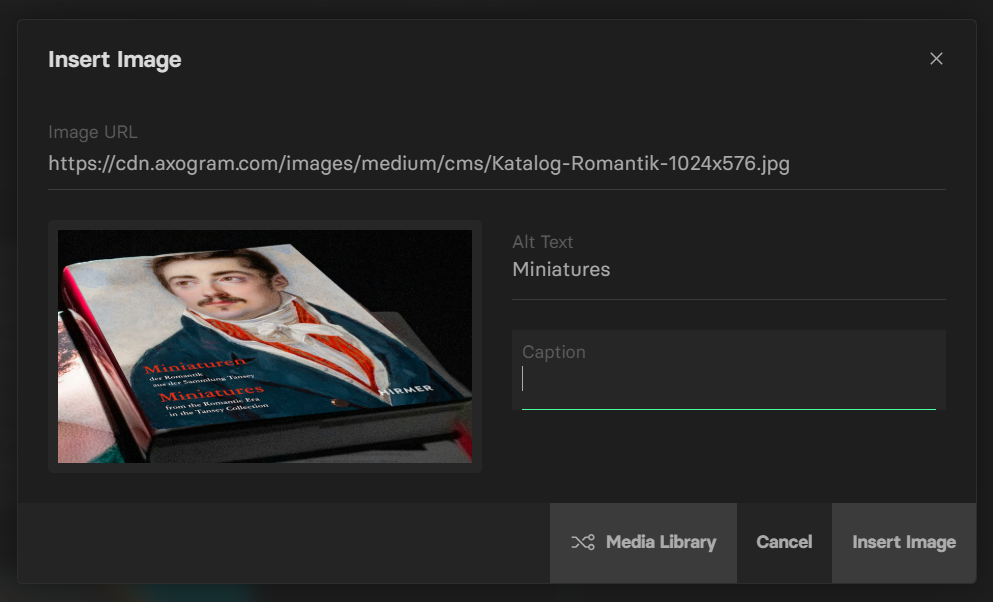
When image insertion is available, you can: enter an image URL manually, add alt text, add a caption, or use the media library button where available.
Best practice: always add useful alt text. Use captions only when the image truly needs a visible caption. Review the preview before inserting.
How To Add a Video
Video insertion is available in the Full Rich Editor only — wherever the video icon appears in the toolbar. Currently this is the CMS “content” field only.
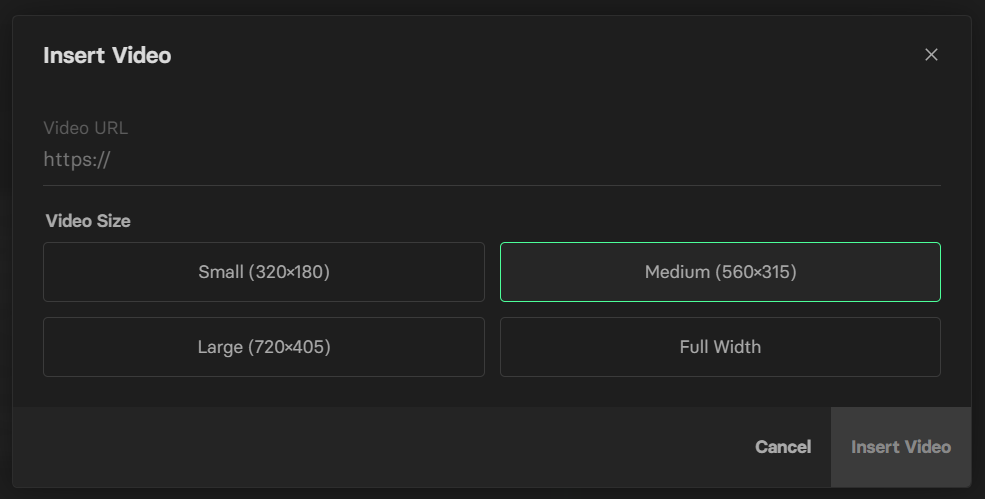
When video insertion is available, you can: add a supported video URL and choose a video size.
Best practice: use only valid video links. Choose a size that fits the content area cleanly.
HTML View: When To Use It
The HTML button switches the editor into source mode.
Use source mode only when you need to: fix broken formatting, remove odd markup, check whether pasted text created strange HTML, or make a very specific link or structure correction.
Safe rule: if you are not sure, return to the normal editor view and keep the formatting simple. The system still cleans unsupported or unsafe markup.
Part 4 — Quick Reference
Keyboard Shortcuts
| Action | Shortcut |
|---|---|
| Bold | Ctrl / Cmd + B |
| Italic | Ctrl / Cmd + I |
| Underline | Ctrl / Cmd + U |
| Strikethrough | Ctrl / Cmd + Shift + S |
| Superscript | Ctrl / Cmd + . |
| Subscript | Ctrl / Cmd + , |
| Undo | Ctrl / Cmd + Z |
| Redo | Ctrl / Cmd + Shift + Z |
| Insert link | Ctrl / Cmd + L |
| Remove link | Ctrl / Cmd + Shift + L |
| Numbered list | Ctrl / Cmd + Shift + 7 |
| Bullet list | Ctrl / Cmd + Shift + 8 |
| Clear formatting | Ctrl / Cmd + Shift + C |
Most useful for daily editorial work: bold, italic, link, undo, and clear formatting.
Common Editorial Mistakes To Avoid
- Pasting directly from Word and assuming it is clean.
- Using straight quotes (
"') instead of typographic quotation marks. - Not checking paragraph breaks after pasting into a short inline field —
<p>tags are stripped. - Using
xinstead of ×. - Using multiple hyphens instead of the correct dash.
- Over-formatting short fields.
- Adding long paragraphs to fields meant for short structured text.
- Using headings just for visual size.
- Leaving broken or overlong links in the text.
- Treating HTML mode as a normal writing mode.
Checklist Before Saving
- The text is in the right kind of field.
- Formatting is minimal and intentional.
- Typographic quotation marks are used — no straight quotes.
- Dashes and symbols are correct (–, —, ×, not --, --, x).
- Paragraph breaks are intact (especially after pasting into a short inline field).
- Links work, are necessary, and open in the same tab unless there is a reason otherwise.
- Pasted clutter is gone.
- Lists still read correctly.
- The result looks clean in the normal editor view.